
Hosting your website
Skapi hosts the files of a static website under a subdomain of skapi.com, served over HTTPS through a CDN. Upload the files, and they are online.
Everything about hosting is done on your project's pages at skapi.com, by the project owner's Skapi account:
- The address, the subdomain your site is served on, is registered, changed and removed on the project's Settings page.
- The files, the 404 page and the CDN are managed on the project's Web Hosting page.
Quick start
- Open your project's Settings page and click Register in the Web Hosting card.
- Type a name, wait for This address is available., and click Register.
- Wait a few minutes for the address to go live.
- Open the Web Hosting page and click + Upload Files, or drag your site's folder onto the file list.
- Click [Open] on the Address row to see your site.
If your site is a single-page app, also set index.html as the 404 page.
Let an AI agent do it
The Skapi MCP server can register a project's first address and upload, edit and delete the files of its site from a prompt. See Connecting the Skapi MCP server.
Registering your subdomain
Before you upload files, the project needs a subdomain. Open the project's Settings page and click Register in the Web Hosting card.

The Web Hosting card on the Settings page, before an address is registered.
The Web Hosting page itself sends you there while the project has no address: it opens with a notice, and OK takes you to the card.
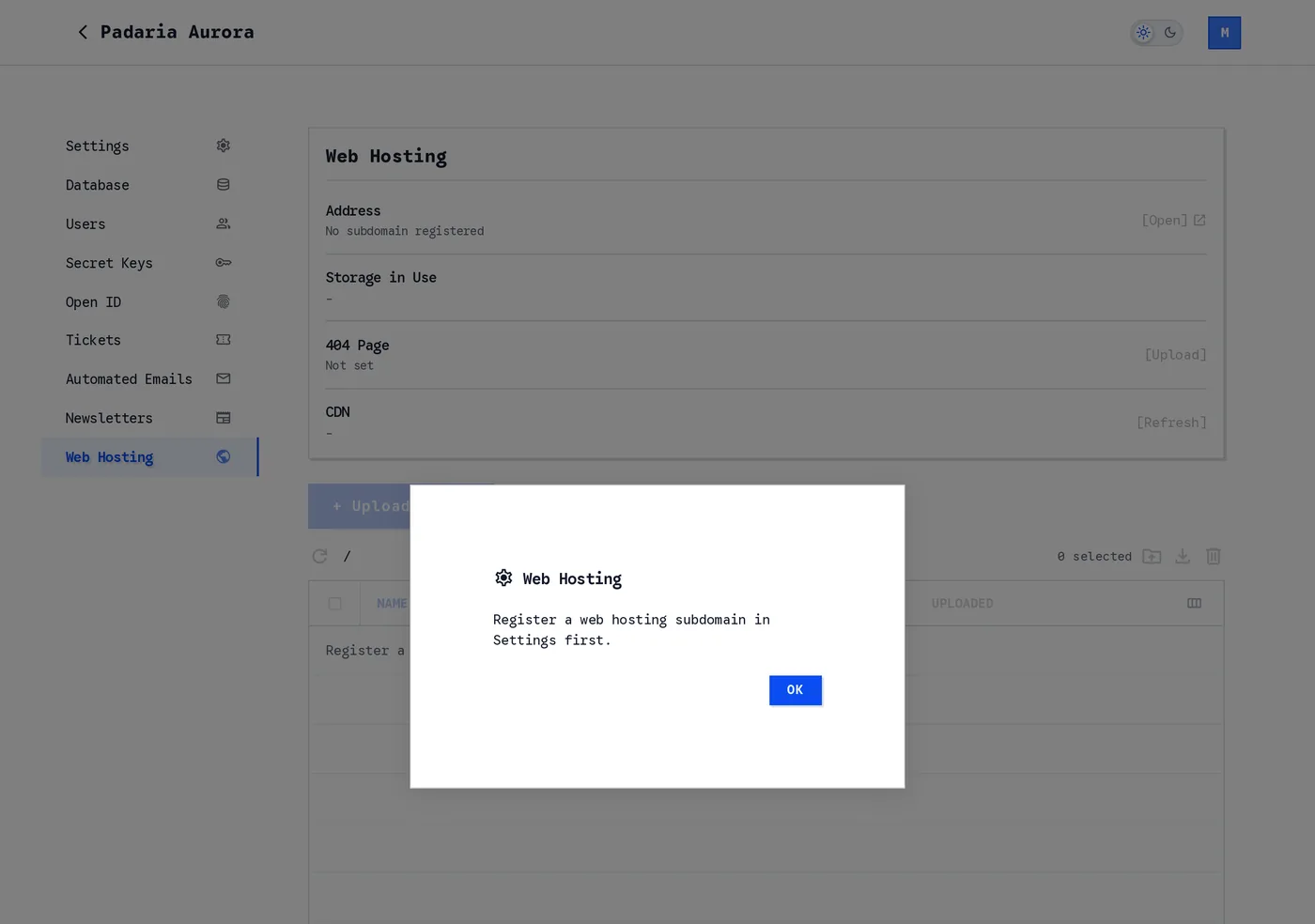
The Web Hosting page without an address. Nothing can be uploaded yet.
The dialog checks the name as you type and lets you register it once it is available.
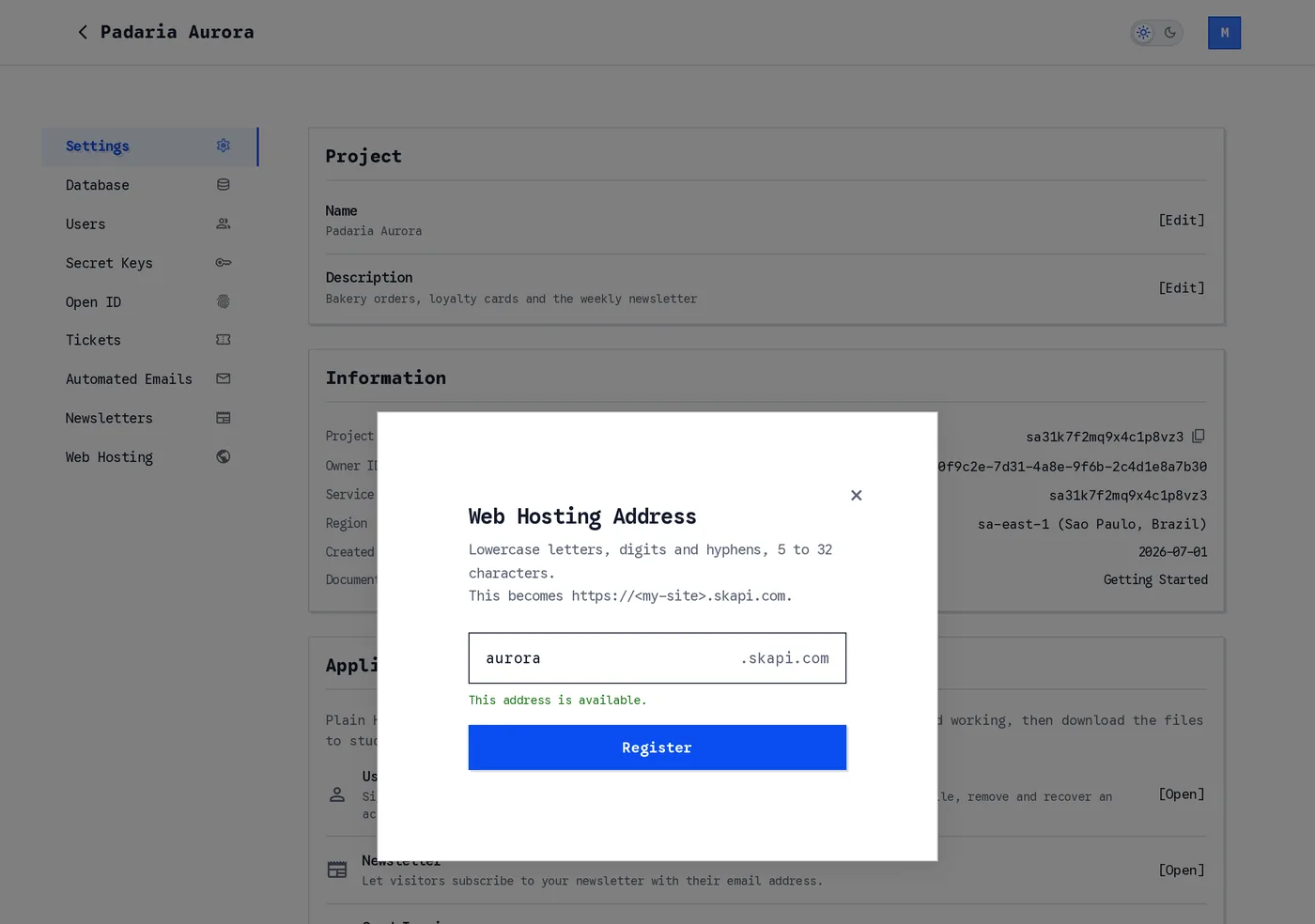
The name is checked while you type. Register unlocks when the address is available.
Under the field, the dialog says one of:
| Message | What it means |
|---|---|
| Checking availability... | The name is being looked up. |
| This address is available. | You can register it. |
| This address is already in use. | Another project has it. Choose another name. |
| This address is reserved. Please choose another name. | The name is one of the reserved ones described below. |
A subdomain is 5 to 32 characters long and can use lowercase letters, digits and hyphens. It cannot start or end with a hyphen, or have two hyphens in a row. Your site is then served at https://<name>.skapi.com.
Since every website is hosted under skapi.com, names that could pass as an official page are reserved and cannot be registered:
- Skapi's own addresses and brand, such as
tutorialorskapi-support. - Sign-in, payment, support and notice pages, such as
checkout,password-resetorsecure-login. - Names of banks, payment services and other brands that are impersonated for logins, such as
paypalormybank-verify, and any brand next to a sign-in or support word, such asnetflix-login.
A brand used for a project of your own, such as netflix-clone or kakao-map-demo, can be registered.
A new address takes a few minutes to go live. Until then the card says that it is being set up, and the Web Hosting page cannot list files yet.
Once it is live, the card shows the address. Click the address to open your site, and click the copy icon beside it to copy it.

The card once the address is registered.
Changing or removing the address
Change in the Web Hosting card moves the site to a new name. The old address is released and the new one set up, which again takes a few minutes; the file list is unavailable while the change is in process, and the name cannot be changed again until it is done.
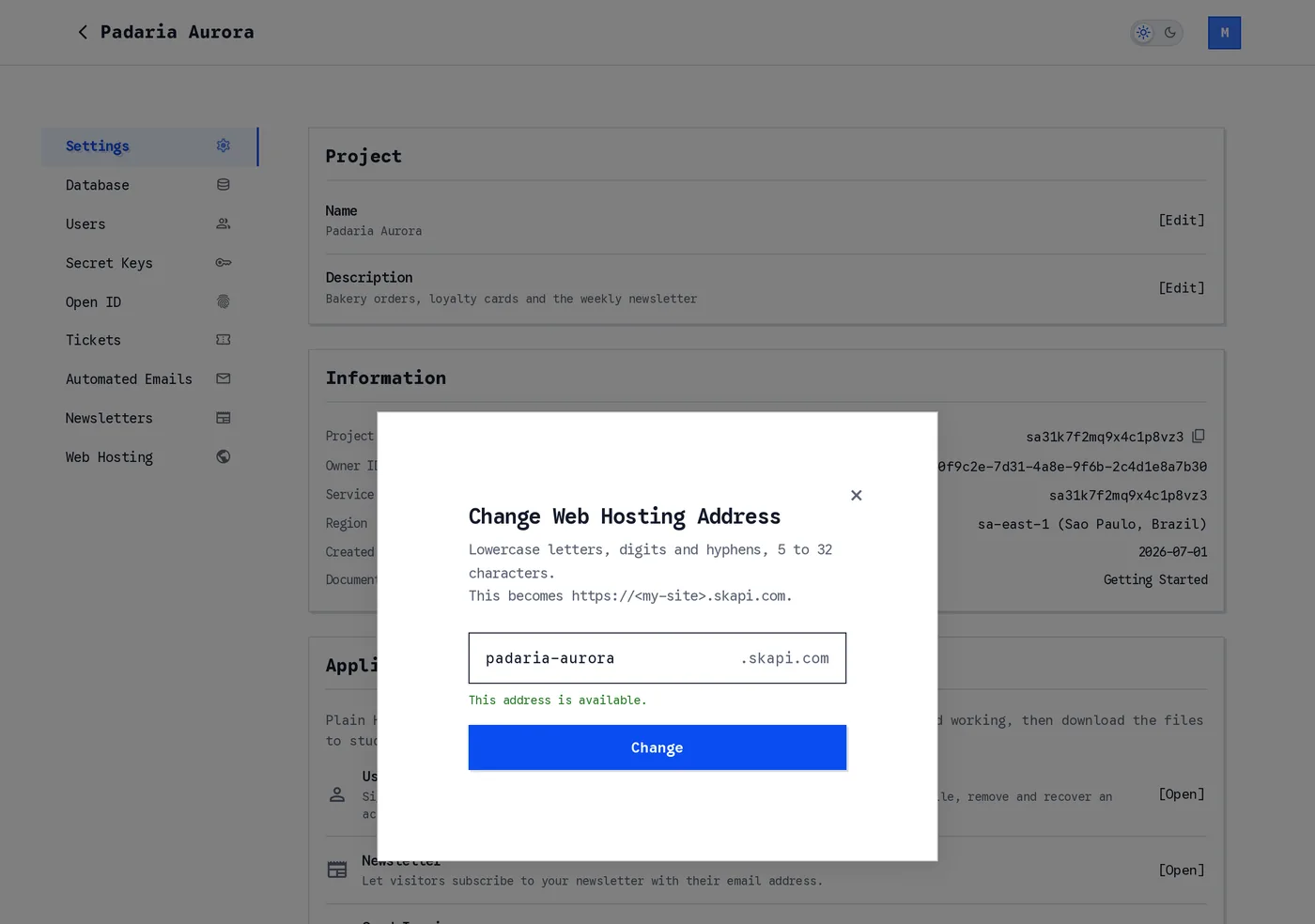
Changing the address. The files move with the site.
Remove releases the address. The site stops being served there, and the files stay in storage, so registering a new name serves them again.
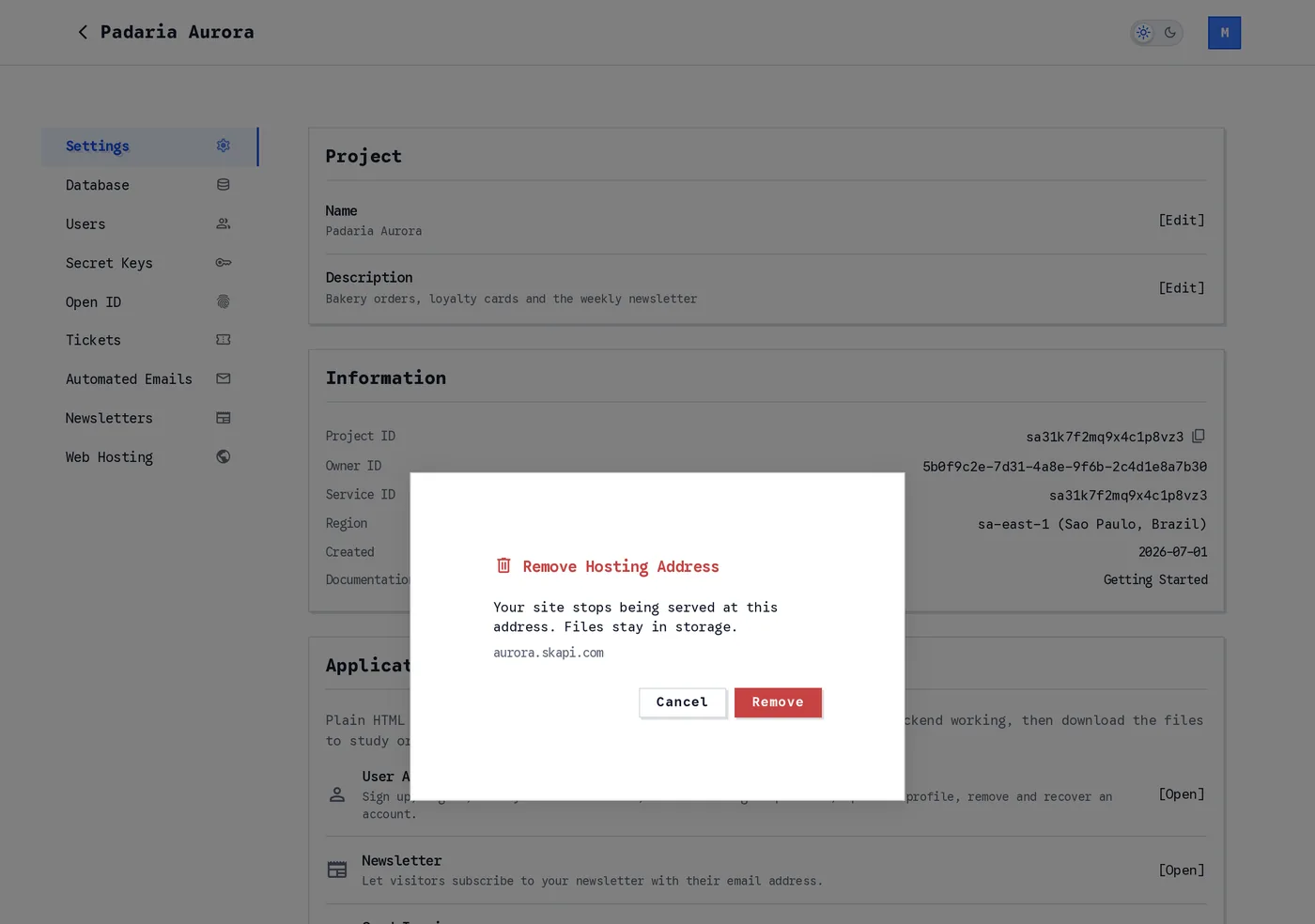
Removing the address takes the site offline and keeps the files.
The subdomain is a project setting
Registering a subdomain, moving it and dropping it belong to the project owner's Skapi account. An admin of the project, access group 99 included, is refused with INVALID_REQUEST and Only the project owner can change project settings.
A temporarily banned subdomain
Skapi can temporarily ban a subdomain, for example one reported for abuse. While it is banned the site is offline, the Web Hosting page says that the address has been suspended, and the subdomain of the project cannot be changed or removed: every request is refused with INVALID_REQUEST and Current subdomain "<name>" is temporarily banned. The name stays reserved to the project during the ban.
The Web Hosting page
The Web Hosting page has a card for the state of the site, and the list of its files under it.
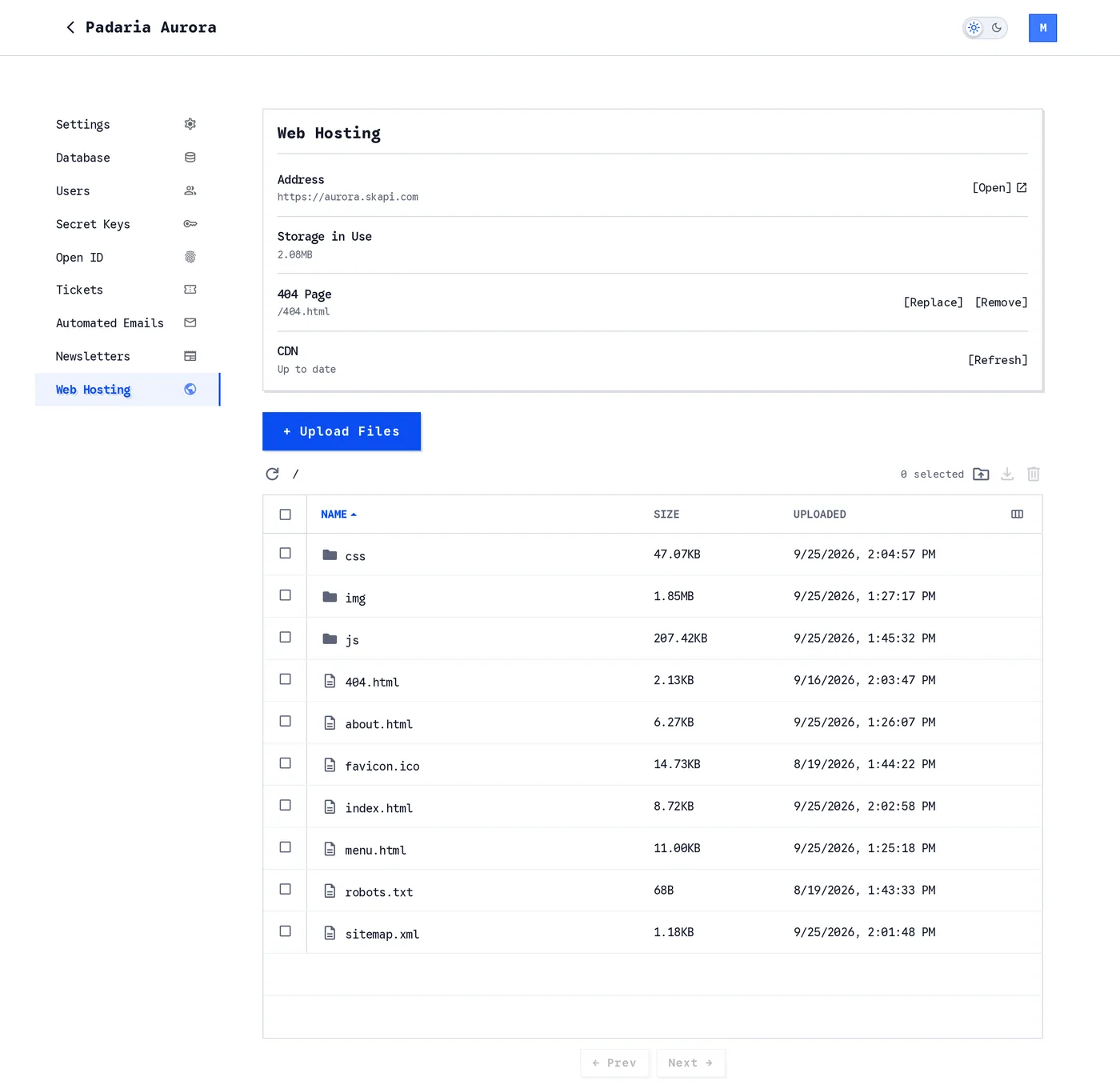
The Web Hosting page of a site with files.
The card has five rows:
- Address: where the site is served. [Open] opens it in a new tab.
- Storage in Use: how much file storage the site takes.
- 404 Page: the file that answers for an address that does not exist. See Setting the 404 page.
- Browser caching: how long a visitor's browser keeps your files. See Browser caching.
- CDN cache: the copies of your files the CDN serves, and whether they are being refreshed. See The CDN cache.
Uploading your website files
On the Web Hosting page, click + Upload Files, use the folder icon on the right of the toolbar to upload a whole folder, or drag files or folders onto the file list. On a phone, tap the list to pick files.
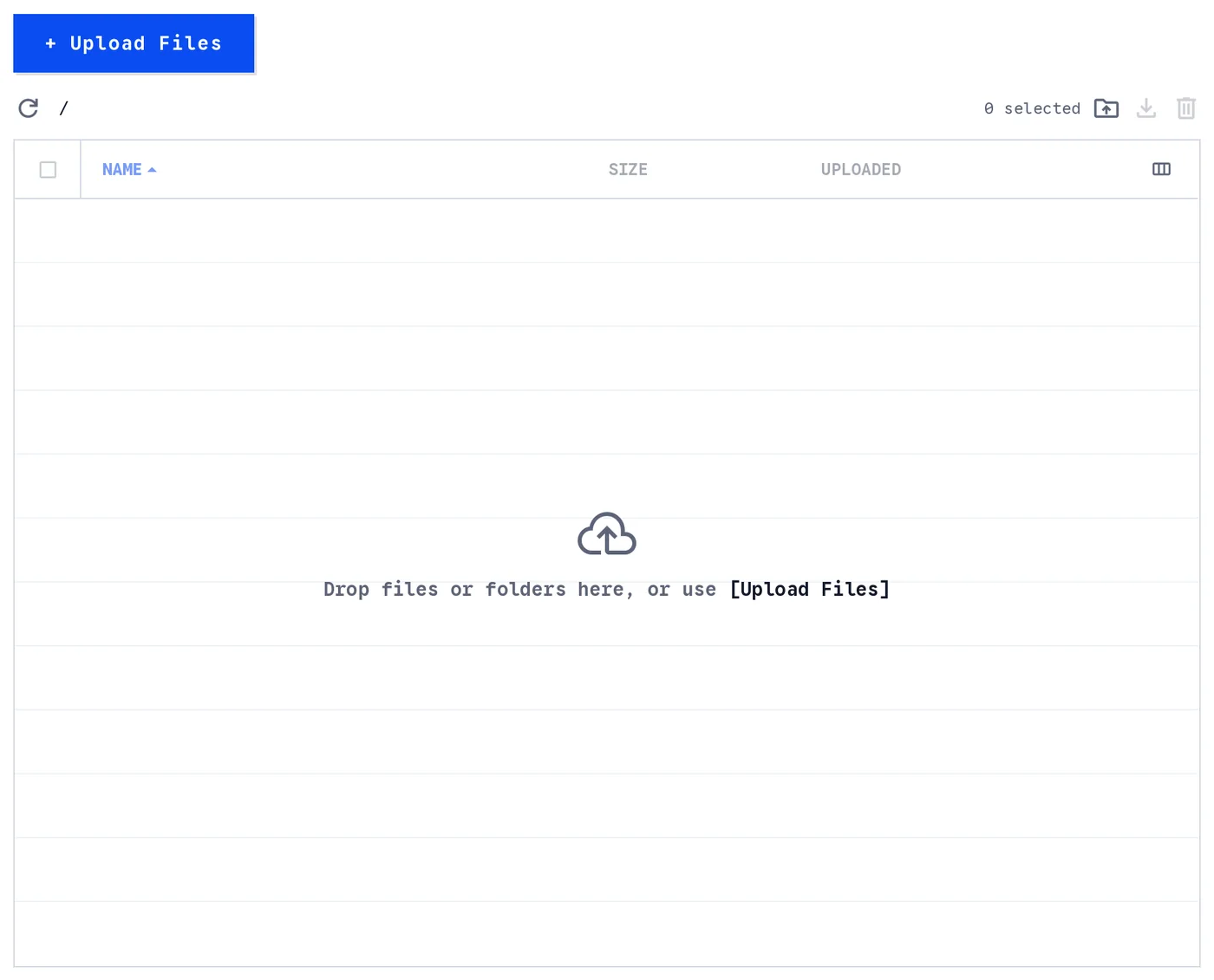
A site with no files yet. Drop your site's folder here, or use the buttons.
While files upload, the first row of the list names the file on the wire and counts the files done. The list fills in as each file lands.
Folders are kept: a file uploaded as css/style.css is served at https://<name>.skapi.com/css/style.css. The list shows one folder at a time. Click a folder to open it, and click a file to open it on your site in a new tab. The path above the list shows where you are, and every part of it leads back up, as does the first row of an opened folder.
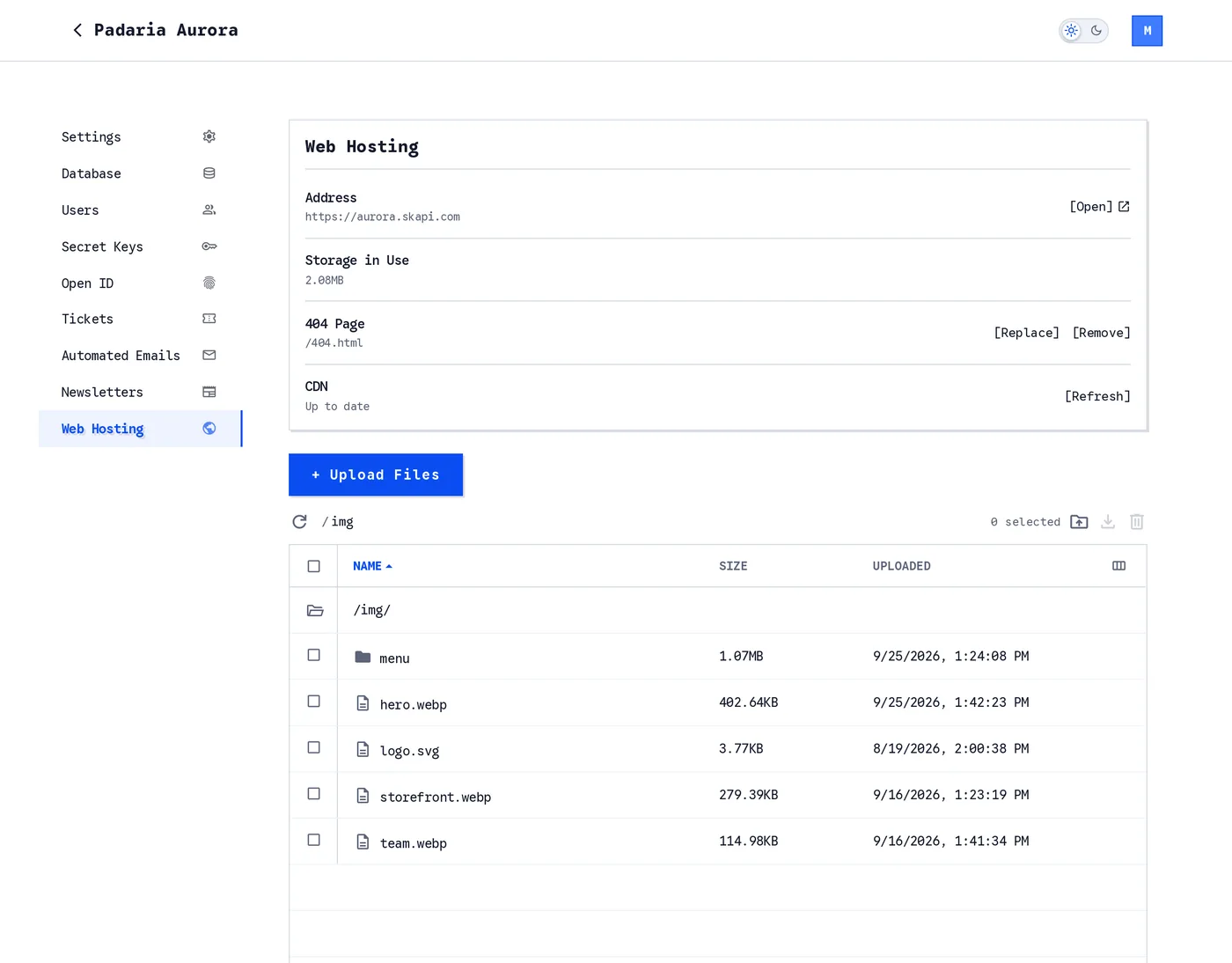
Inside a folder. The path and the first row both lead back up.
A folder row shows the total size of what it holds. Click a column header to sort by Name, Size or Uploaded, and use the column icon on the right of the header to show or hide columns.
A file uploaded to a path that already exists replaces the old file.
Downloading and deleting files
Tick the files or folders you want. The toolbar counts the selection, and its icons download it as a ZIP file or delete it.
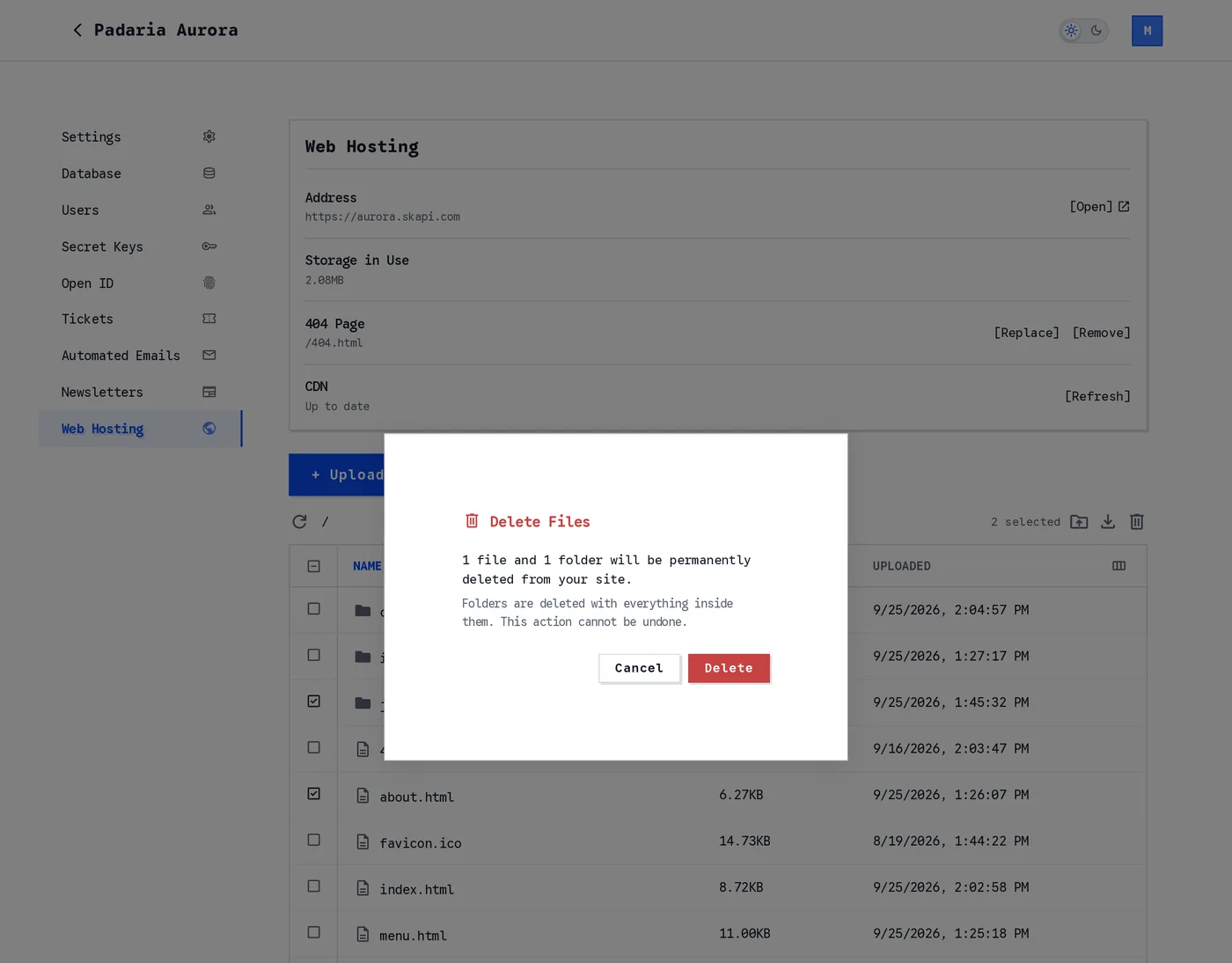
Deleting a file and a folder. A folder is deleted with everything inside it.
A folder is deleted with everything inside it, and a delete cannot be undone.
INFO
- Only the project owner can upload and delete hosted files. Admins of the project cannot, access group
99included. - A file name cannot start with
#: that character marks a folder in the file list, and the upload is refused. - Hosted files count toward your plan's file storage, together with record files and cloud files. The Storage in Use row on the page shows how much your site takes.
DANGER
Since the files are hosted publicly, DO NOT upload any sensitive files in your hosting page.
index.html
The index.html file in the root of your site is served at https://<name>.skapi.com/, so it is the page a visitor gets for the address itself.
Setting the 404 page
The 404 Page row on the Web Hosting page names the file that answers when a visitor opens an address that does not exist on your site. It reads Not set until you choose one.
- Click [Upload] on the 404 Page row.
- Pick an HTML file. It is uploaded to the root of your site and set as the 404 page.
The row then shows the file, as /404.html in the screenshot above. [Replace] uploads another file in its place, and [Remove] clears the setting; the file itself stays in the list.
Choosing it is a project setting, so only the project owner's Skapi account can, and an admin is refused with Only the project owner can change project settings.
DANGER
If you are using an SPA framework such as Vue, React, or Angular, YOU MUST set your index.html as the 404 page, so every route of your app is answered by it.
The CDN cache
Your files are served through a CDN, which keeps a copy of each file close to your visitors for up to a day. That is what makes the site fast.
Every upload, overwrite or delete refreshes the CDN by itself: about a minute after your last file lands, the CDN drops its copies of the whole site and fetches the new files on the next visit. The CDN cache row on the Web Hosting page reads Updating while that happens and Live when it is done. There is nothing to click.
[Refresh now] on the same row does the same thing at once, without the minute's wait. It republishes every file of the site to the CDN. It does not change what your visitors' browsers already keep; that is Browser caching.
Browser caching
A visitor's browser keeps its own copy of each file it has fetched, and reuses it without asking for as long as you allow. Longer makes return visits faster, but a changed file is not seen by a visitor who already has it until that time passes or the file's name changes.
The Browser caching row on the Web Hosting page holds the setting for your uploads:
| Choice | The browser keeps a file for |
|---|---|
| No caching | not at all: it asks the CDN before every use and gets a tiny "unchanged" answer when nothing changed. The default |
| 5 minutes | 5 minutes |
| 1 hour | 1 hour |
| 1 day | 1 day |
| 7 days | 7 days |
| 30 days | 30 days |
| 1 year | 1 year |
| Ask on upload | the page asks you once per upload, and offers to make your answer the default |
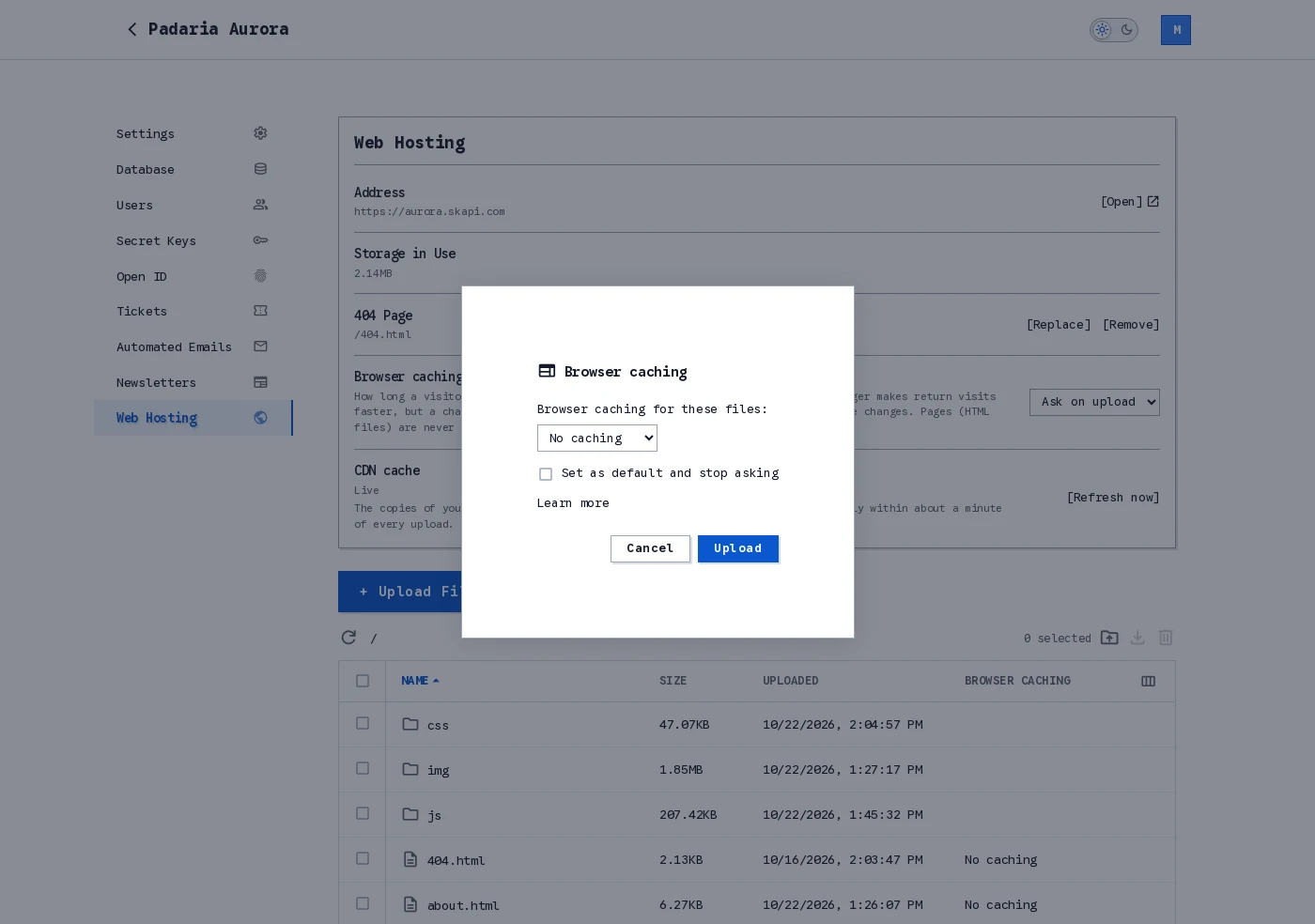
Asked once per upload when the setting is Ask on upload.
Anything above 5 minutes comes with a warning: visitors who already have a file will not see a new version for that long unless its name changes.
7 days or more needs a second look. Choosing it opens an alert you have to accept, because of what it means:
- Visitors who already have a file will not see a new version of it for that long, even after you upload a change.
- Once a visitor's browser has downloaded a file, you have no control over it. Nothing you do on the Web Hosting page, not a new upload and not a CDN refresh, reaches a copy a browser already holds. You cannot change this for a file with the same name.
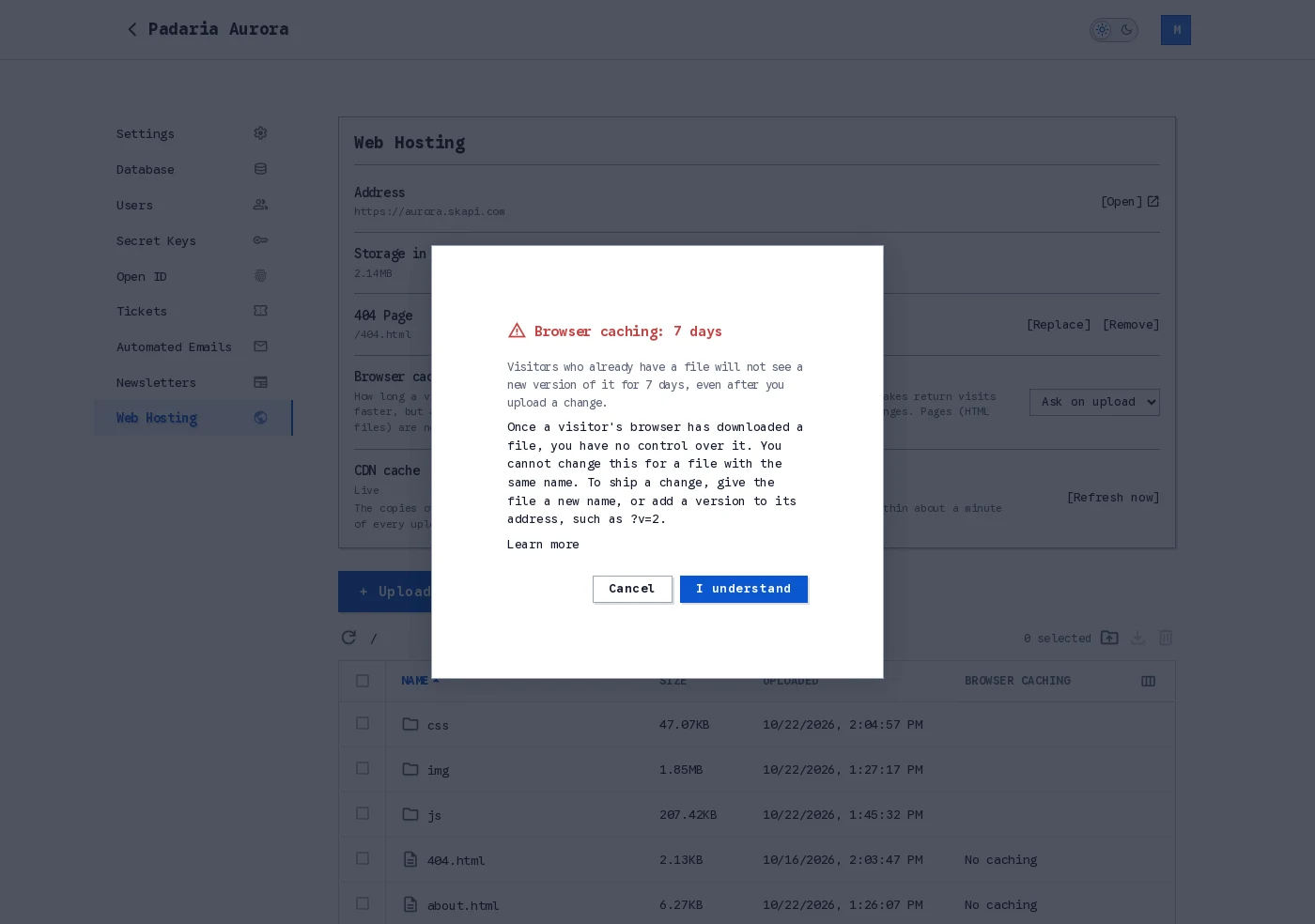
The alert for 7 days or more.
The only way to ship a change to such a file is a new address: a new file name, or a version on the address as shown below.
Pages are never kept. Every HTML file is served as "No caching" whatever the setting, so a reload always shows the newest page, and a page is what names your other files. The 404 page is a page too.
The choice is written onto each file when it is uploaded. Files you uploaded before you changed the setting keep what they had; upload a file again to change it. The file list shows each file's value in its Browser caching column.
Shipping a new version of a long-cached file
Give it a new address. Either rename the file, as build tools do with a hash in the name (app.3f9c1e.js), or add a version to the address you use in your pages:
<script src="/app.js?v=2"></script>?v= is the one query string the CDN and the browser treat as a new address; any other query string is ignored. Change the number whenever you change the file, and every visitor gets the new one on their next visit, however long the old one was allowed to live.